
Instead of repeatedly searching your phone’s Bluetooth list, pair your Hublot Big Bang e through the companion app specified by the watch’s setup screen. The correct Hublot Big Bang e companion app depends on the watch’s software generation: follow its on-screen instructions, not the Big Bang name alone.
- Choose the Hublot Big Bang e companion app identified by your watch’s setup screen.
- Wear OS by Google supports older Wear OS setups; do not assume it supports every Big Bang e.
- Start pairing inside the companion app, then confirm that both devices display matching codes.
- For a pre-owned Hublot, test connectivity alongside condition, charging and independent authentication.
Why the app choice matters
Hublot’s connected Big Bang e is not interchangeable with the brand’s conventional watches. A Bluetooth connection alone does not complete smartwatch setup: the companion app manages the onboarding process and requests the permissions needed for supported phone functions.
Google distinguishes between older Wear OS pairing through Wear OS by Google and newer setups that use a manufacturer-designated companion app. That distinction matters when you encounter instructions written for a different watch generation.
For a 2026 purchase, establish the exact reference and installed software before assessing phone compatibility. The principles in how to buy a luxury watch online in Australia also apply here: identify the actual watch, examine its condition and request evidence for the functions that matter to you.
A successful pairing test establishes connectivity, not authenticity or overall condition. Treat those as separate checks.
Before you start
- Have both devices ready. Charge the watch and phone, enable Bluetooth on the phone and keep an internet connection available for app installation and account sign-in. Have access to any account requested during setup.
- Identify the watch and its app requirement. Record the reference and inspect the watch’s setup screen or software information. Use Hublot’s instructions for that reference and the official app-store listing to check your phone’s operating-system requirements in 2026.
- Resolve previous ownership first. An already configured watch can require a transfer procedure or factory reset before pairing with another phone. A reset erases local data; it is not a substitute for resolving an account prompt with the previous owner.
The non-obvious obstacle is choosing an app from an old article before examining the watch. Do not install several similarly named apps and alternate between them. First establish which app the watch actually requests.
Which pairing route applies?
Use this table to choose a starting point, not to infer compatibility from the appearance of the case.
| Setup route | Best for | Advantage | Limitation |
|---|---|---|---|
| Wear OS by Google | An older watch whose instructions explicitly name that app | Follows the established onboarding route for supported older Wear OS watches | Not the universal companion app for newer Wear OS generations |
| Manufacturer-designated companion app | A watch whose setup instructions identify a dedicated app | Matches onboarding to the watch’s software generation | Phone and operating-system support must be checked for the exact reference |
| Phone Bluetooth settings alone | Inspecting or removing an existing Bluetooth entry | Helps diagnose a stale connection | Does not replace companion-app onboarding |
Android and iPhone instructions are not automatically interchangeable. An app appearing in an app store does not establish that every Big Bang e reference supports that phone.
Watch identification and app selection
- Read the watch’s setup screen. If the watch is already configured, inspect its software information through Settings. Record the displayed software version and reference information where available; do not reset it merely to find an app name.
- Match the instructions to the reference. Consult Hublot’s official support material for that watch. Distinguish the connected Big Bang e from other Big Bang models, which do not share its smartphone-pairing process.
- Install the specified companion app. If the instructions explicitly name Wear OS by Google, use that app. If they identify a manufacturer-specific app, use that instead. Check the publisher and compatibility information before installation.
- Check the phone requirements. Compare the app listing’s requirements with the operating system actually installed on your phone. Confirm the supported platform as well as the required software version.
Expected result: you have identified one pairing route supported by the watch’s instructions and your phone. You have not yet created a connection manually through the phone’s Bluetooth device list.
For a pre-owned example, ask the seller to demonstrate this identification process. A photograph of an illuminated dial does not show whether the companion app can recognise the watch or complete onboarding.
Companion-app pairing
- Bring the watch to its pairing screen. For an unconfigured watch, follow its initial language and setup prompts. For a previously configured watch, use its documented transfer or reset procedure only after addressing existing ownership and account requirements.
- Open the specified companion app on the phone. Begin its watch-setup process. Follow the labels displayed in your installed version rather than looking for a button name copied from another generation’s instructions.
- Allow the discovery permissions requested by the operating system. Bluetooth or nearby-device access enables the app to find the watch. Older Android setups can also request location permission for Bluetooth discovery; follow the explanation shown on your phone.
- Select the watch that matches the display. Check its identifying name rather than choosing the first nearby device. Keep the watch and phone together while the app establishes the connection.
- Compare the pairing codes. Confirm only when the code displayed on the watch matches the code displayed on the phone. If they differ, cancel that attempt and start discovery again.
- Complete the remaining account and permission prompts. Finish onboarding in the companion app. Do not treat a successful Bluetooth code exchange as the end of the process.
Expected result: the companion app recognises the watch and finishes its setup sequence without returning to device discovery. The watch reaches its normal operating screen rather than remaining on the pairing instructions.
Think of pairing as three separate tasks: identifying the right software, establishing the connection and checking the result. Skipping the first task creates problems that repeated Bluetooth attempts will not solve.
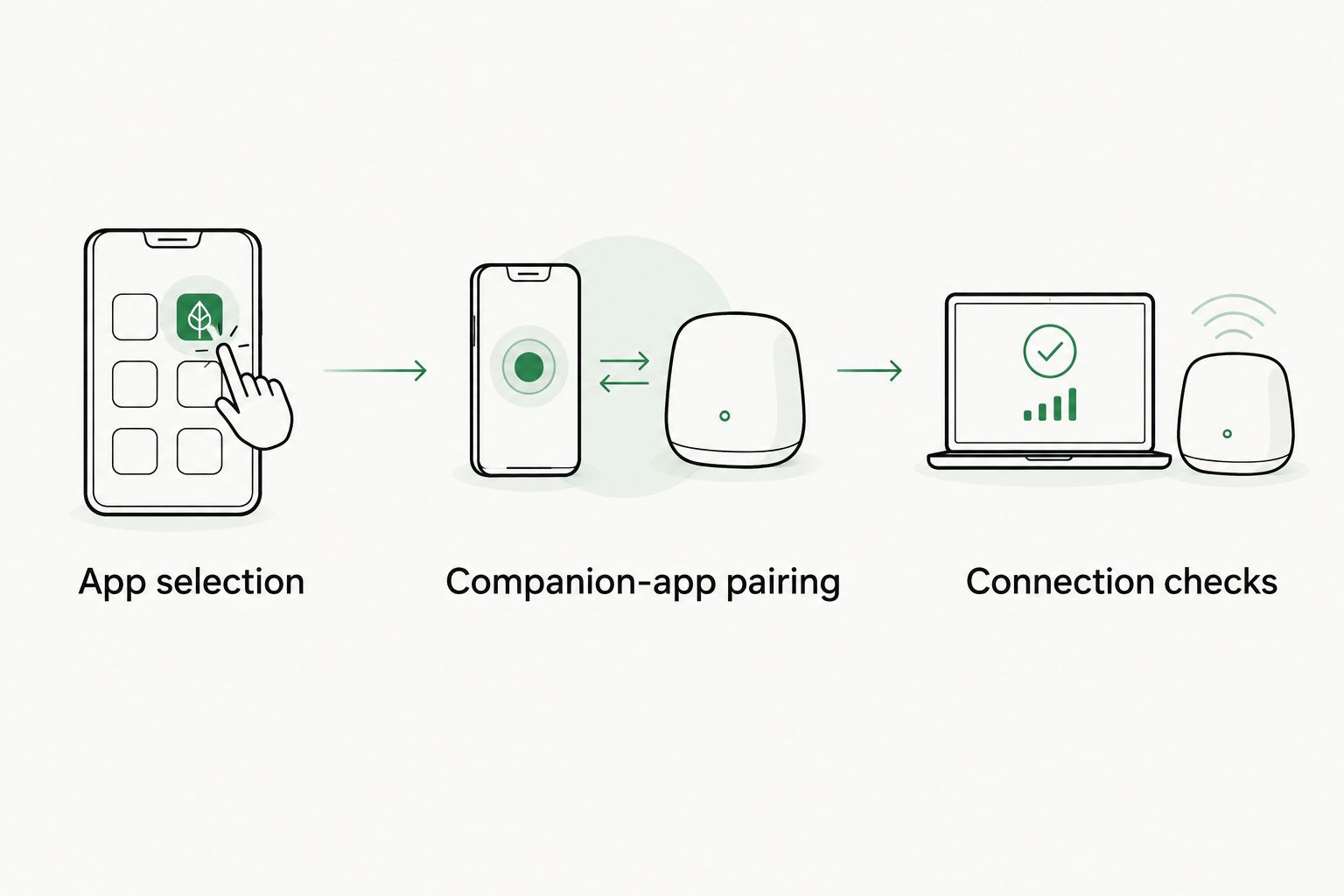
Connection checks and notification permissions
- Inspect the connection in the companion app. Confirm that the app identifies the intended watch. If setup still asks you to select a device, onboarding has not finished.
- Review notification access. Enable the permissions needed for the notifications you want. Pairing permission and notification permission are separate decisions, so a connected watch can still receive no alerts.
- Send 1 test notification. Use a messaging or other phone app whose notifications you have explicitly allowed. Check the phone’s notification settings and any watch filtering before judging the result.
- Check quiet modes. Review Do Not Disturb on the phone and watch where present. A deliberately silenced alert is not evidence that pairing failed.
- Check reconnection after ordinary use. Let the phone lock, then inspect the connection again. If the link fails when the companion app is no longer foregrounded, review the phone’s background-activity restrictions.
Expected result: the companion app recognises the watch, and a permitted test notification reaches it under the conditions supported by your setup. Record any function that remains untested rather than assuming everything works.
For a 2026 pre-owned inspection, ask to see both the watch and the companion app during this check. Screenshots from separate devices do not demonstrate that the particular watch is connected.
Keep notification access selective. Start with the alerts you genuinely want on your wrist, then expand access after the basic connection works.
Moving the Big Bang e to another phone
Changing phones is a different workflow from recovering a temporarily dropped connection. Start with the watch’s documented transfer instructions, not a factory reset.
- Keep the old phone accessible. Before removing anything, confirm that you can open the existing companion app and access any account used by the watch.
- Check for a supported transfer procedure. Use it only if the watch’s software and official instructions provide one. Do not assume instructions for another Wear OS watch apply.
- Prepare for data loss if a reset is required. Review what the watch says will be erased and check any available backup arrangements. Do not promise yourself that every setting or locally stored item will return.
- Complete onboarding on the new phone. Install the app specified for the watch, repeat the matching-code check and review permissions again. Permissions granted on the old phone do not establish permissions on the replacement.
Expected result: the watch completes setup with the intended new phone and passes the same connection checks. Keep it paired to 1 phone through the supported procedure rather than trying to maintain competing setup sessions.
For a private purchase in 2026, ask the previous owner to resolve account prompts before handover. Original packaging cannot resolve a digital ownership problem, and its presence does not establish the watch’s quality.
Troubleshooting pairing and notifications
The companion app cannot find the watch
First confirm that the watch is displaying its pairing instructions. An already configured watch is not necessarily discoverable for a fresh setup.
Check Bluetooth and the app’s discovery permissions, then verify that you installed the app specified for that generation. Restart both devices before escalating to a reset. Installing the wrong app is not fixed by repeating discovery.
The watch appears in Bluetooth but setup never completes
A Bluetooth entry is not proof that companion-app onboarding finished. Return to the specified app and begin its setup process.
If you previously paired directly from the phone’s Bluetooth list, remove that incomplete entry before retrying through the app. Do not remove an otherwise working connection merely because you are investigating a notification problem.
The pairing codes differ or the attempt fails
Cancel the attempt rather than accepting a mismatched code. Confirm that you selected the intended watch, then retry with both devices together.
If an incomplete attempt left a stale Bluetooth entry, remove that entry and restart the devices. Follow the watch’s instructions before considering a factory reset; resetting should not be your first diagnostic step.
The watch connects but receives no notifications
Check notification access for the companion app and the individual phone app being tested. Review quiet modes and notification filtering on both devices.
If notifications stop when the phone locks, inspect background-activity and battery restrictions affecting the companion app. Change the relevant restriction, then repeat the same test so you can identify whether that change solved the problem.
Setup requests the previous owner’s account
Stop the setup and contact the previous owner or Hublot support. Do not attempt to bypass account protections or enter someone else’s credentials.
For a watch you are considering buying, require that prompt to be resolved before completing your assessment. Independent authentication remains a separate requirement even after onboarding succeeds.
Customise the workflow around actual wear
Once pairing works, configure the watch for your routine rather than enabling every permission immediately. Add notifications individually, check their behaviour and retain only the interruptions you find useful.
Assess the physical watch with equal care. Inspect the display, case, crown, strap attachment and charging contacts; test touch response and charging rather than relying on a description such as excellent condition. Ask for relevant service evidence where available and establish what an independent inspection covers.
For connected watches, battery behaviour and software compatibility deserve attention alongside originality and external condition. A short demonstration does not establish battery endurance, so request a practical demonstration appropriate to your intended wear.
James Patten Fine Watches serves Australian luxury-watch buyers and collectors. For a pre-owned Big Bang e, the strongest buying evidence combines reference correctness, independent authentication, physical condition and a demonstrated phone connection. None of those checks replaces the others.
FAQ
What is the correct Hublot Big Bang e companion app?
Use the companion app identified by your watch’s setup screen and Hublot’s instructions for its exact reference. Older Wear OS setups can use Wear OS by Google; do not assume that app supports every Big Bang e generation.
Can I pair a Hublot Big Bang e directly through Bluetooth settings?
Start setup through the specified companion app rather than the phone’s Bluetooth list alone. The Bluetooth connection is only part of onboarding, which also includes permissions and any required account steps.
Does a Hublot Big Bang e work with an iPhone?
Check iPhone support for the exact watch reference and its required companion app. Compatibility established for one Big Bang e generation does not establish compatibility for another.
Why can’t my phone find my Hublot Big Bang e?
Check that the watch is ready for pairing and that the correct companion app has discovery permission. An already configured watch or an app intended for another software generation can prevent a fresh setup.
Why is my Big Bang e connected but not showing messages?
Check notification access, individual app permissions and quiet modes on both devices. A completed Bluetooth connection does not automatically grant permission to display every phone notification.
Do I have to reset a Big Bang e when changing phones?
Follow the transfer procedure supported by the watch’s installed software; some setups require a reset. Review the data-erasure warning and resolve account access before proceeding.
What should I check before buying a pre-owned Big Bang e in 2026?
Check the reference, independent authentication, physical condition, charging, battery behaviour and pairing with your intended phone. Request relevant service evidence where available; a successful app connection alone does not authenticate the watch.
One last thing
The most useful demonstration ends with your phone, not the seller’s. For a Big Bang e purchase in 2026, establish compatibility with your intended handset and request a pairing demonstration through the supported ownership-transfer process. A watch that connects to someone else’s phone has not yet demonstrated that it meets your requirements.


