
For a TAG Heuer Connected E4, use Wear OS by Google to pair the watch with your smartphone, then connect the TAG Heuer Connected app for supported TAG Heuer features. Instead of repeatedly searching your phone’s Bluetooth list, start in the pairing app specified by your watch; other Connected generations require their own model-specific instructions.
- TAG Heuer Connected E4 pairs through Wear OS by Google before you configure supported TAG Heuer Connected app features.
- The right TAG Heuer Connected smartphone app depends on your watch generation, not its appearance.
- Start pairing inside the required app, not solely in your phone’s Bluetooth settings.
- Verify notifications and synchronisation separately; successful Bluetooth pairing does not confirm every permission is enabled.
Why this matters
A TAG Heuer Connected E4 needs app-led pairing, not just a Bluetooth connection. The phone’s Bluetooth menu establishes a wireless relationship, but the setup app handles the permissions and account steps that make the relationship useful.
For a pre-owned purchase in 2026, establish the exact reference before assessing smartphone compatibility. A similar-looking case does not establish which software the watch uses. James Patten’s guide to pre-owned TAG Heuer watches for first-time buyers provides broader buying context; the instructions below concentrate on connecting a Connected watch.
This workflow covers the Wear OS-based Connected E4. If your watch directs you to a different companion app, follow that instruction rather than forcing the E4 route.
Before you start
- Identify the watch and required app. Read the reference and software information on the watch or its model-specific instructions. Check the current Australian App Store or Google Play listing against your actual phone and operating-system version; do not rely on an old compatibility screenshot.
- Prepare the essentials. Have the watch, its correct charger, your phone, an internet connection and access to the accounts requested during setup. Enable Bluetooth and keep the watch charged throughout pairing and updates.
- Resolve previous ownership first. A used watch that still belongs to another phone’s setup needs the appropriate transfer or reset procedure. A reset erases local settings and unsynchronised data, so synchronise anything you need before proceeding.
Treat app compatibility as a separate check from physical condition. In 2026, an attractive pre-owned Connected watch still needs to work with your particular phone, account and required features.
Which app does what?
For Connected E4 setup, Wear OS by Google and the TAG Heuer Connected app serve different purposes. Neither replaces every phone permission, and neither turns a mechanical TAG Heuer into a smartwatch.
| App or setting | Best for | What it handles | Limitation |
|---|---|---|---|
| Wear OS by Google | Connected E4 initial pairing | Guided watch-to-phone setup and the connection required for supported phone-linked functions | Does not replace every TAG Heuer-specific feature or account step |
| TAG Heuer Connected app | Supported TAG Heuer features after pairing | TAG Heuer-specific watch personalisation and activity information supported by the model | Installing it alone is not the E4’s initial Wear OS pairing process |
| Phone Bluetooth settings | Checking or removing an existing Bluetooth association | Shows paired devices and lets you remove an obsolete association | A listed device does not prove app setup, notifications or synchronisation are complete |
Use the watch’s own setup instructions as the deciding reference. An app-store search for the TAG Heuer Connected smartphone app identifies software, not whether that software supports every Connected generation.
For a 2026 setup, read the current listing and model-specific TAG Heuer instructions before installing. Do not substitute a similarly named third-party application.
Watch identification and app preparation
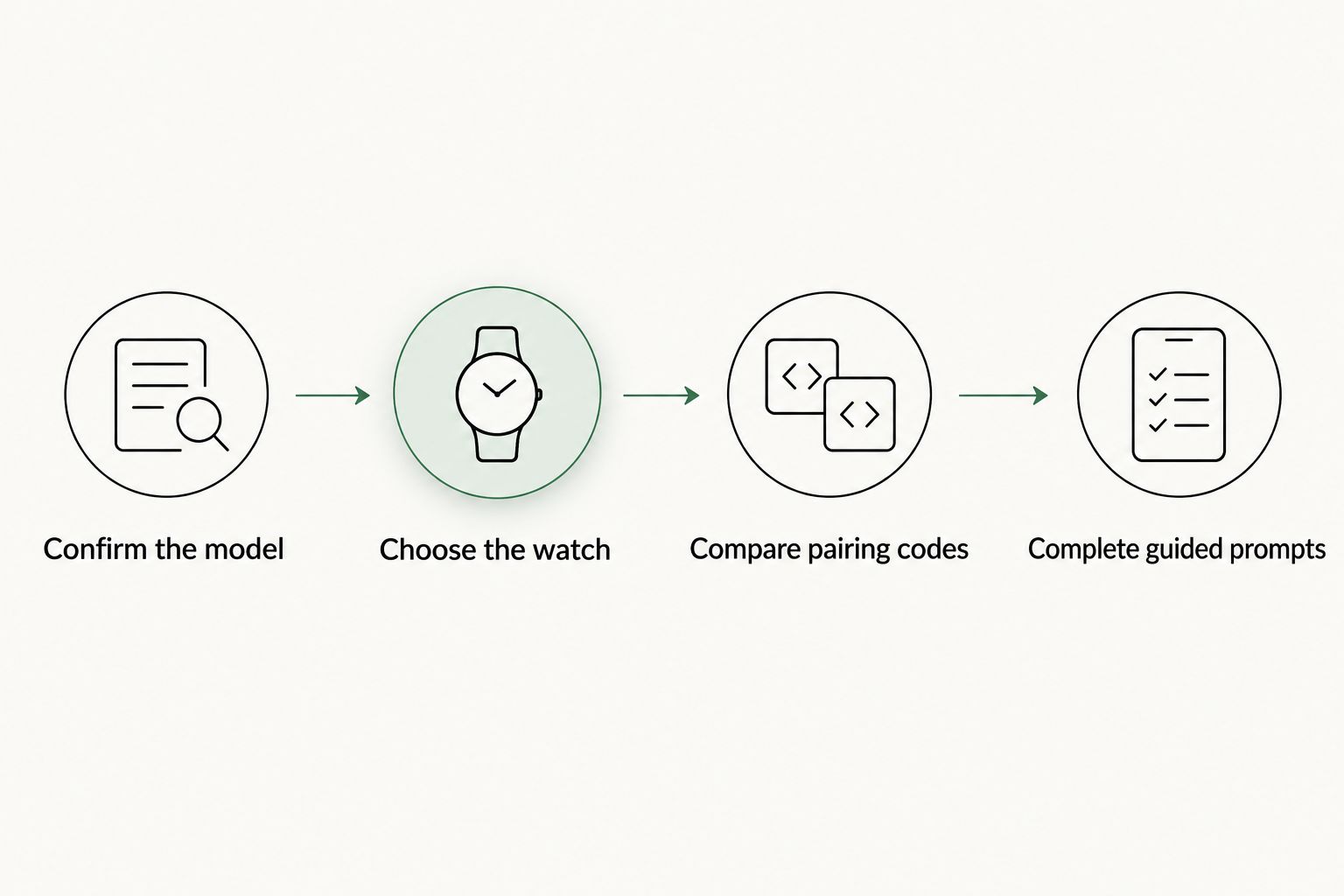
- Confirm the model. On an already configured watch, open Settings and locate its model and software information. On an unconfigured watch, use the reference information and the instructions shown during startup.
- Check the required pairing route. For a Connected E4, prepare Wear OS by Google. If the watch names another app, stop here and follow that model’s instructions instead.
- Install the official software. Find Wear OS by Google in your phone’s official app store and check the publisher. Install the official TAG Heuer Connected app separately for the supported TAG Heuer functions you intend to use.
- Prepare phone access. Enable Bluetooth and internet access. Keep the phone unlocked during the initial connection, and have the credentials required by the apps ready.
Expected result: you know the watch generation, have the correct official apps installed and can reach the watch’s pairing screen. You have not tried to substitute a Bluetooth-menu connection for guided setup.
Do not assume an instruction is wrong solely because its screenshot differs from your display. App versions change; the model, required app and matching pairing code matter more than the position of a button.
Wear OS pairing
- Start the watch. Place it on its charger, switch it on and follow the language and introductory prompts until it asks to connect to a phone.
- Open Wear OS by Google on the phone. Select Start setup when that option appears. If the app already manages another watch, use its option to add a watch rather than removing the existing device unnecessarily.
- Choose the correct watch. Select the device name matching the watch’s display. Keep other unconfigured watches out of the process so you do not select the wrong device.
- Compare the pairing codes. Read the code on both screens and confirm only when they match. Accept the phone’s Pair request when shown.
- Complete the guided prompts. Follow the account, permission and update instructions. Leave both devices close together until the app finishes rather than stopping as soon as Bluetooth reports a connection.
Expected result: Wear OS recognises the Connected E4 and the watch reaches its normal watch face. A pending update or account prompt means setup still needs attention.
If the pairing code differs, cancel the attempt. Restart discovery from the app and select the watch again; accepting a mismatch is not a troubleshooting step.
TAG Heuer account and permissions
- Open the TAG Heuer Connected app. Follow its sign-in or account-creation prompts and its instructions for connecting your supported watch. Use the account you intend to retain, especially when replacing a phone.
- Review requested access. Allow Bluetooth access where requested. Grant the notification and activity permissions needed for the functions you actually want; declining access limits the corresponding feature.
- Check phone notification settings. On iPhone, review Settings and Notifications for the sending app. On Android, review that app’s notification permissions and any notification-access request made by the watch software.
- Review background restrictions. Check whether the phone is restricting the companion app’s background activity. Adjust the app-specific setting rather than disabling battery management across the entire phone.
Expected result: the required apps recognise the watch, your intended account is active and the relevant permissions are enabled. A successful sign-in alone does not establish that notifications or activity data are working.
Privacy choices remain yours. If you want watch faces but not activity sharing, review each request individually rather than treating every permission as mandatory for every function.
Connection checks
- Test a notification. Lock the phone and have someone send a message through an app whose notifications you have enabled. Check whether the watch receives it; an unlocked phone is not the clearest test of normal wrist notifications.
- Test TAG Heuer synchronisation. Open the relevant watch and phone apps, then check whether supported information updates. Compare a recognisable recent entry rather than assuming an unchanged total means success.
- Test normal use. Take the watch off the charger, wear it and check that the connection persists while the phone remains nearby. Confirm that the display, touchscreen and buttons respond normally.
- Separate hardware from software. Note charging interruptions, unexpected shutdowns or unreliable controls independently of app errors. Re-pairing does not repair a damaged charger contact or worn battery.
Expected result: you have confirmed the connection, notification delivery and intended app functions separately. Record any failed check before changing settings so you can tell whether the next adjustment fixes it.
For a pre-owned Connected watch, these checks complement authentication and an assessment of case, display and battery condition. Original packaging does not establish digital functionality or the quality of the watch itself.
Connect the watch after changing phones
A phone replacement is different from a temporary disconnection. The old phone’s Bluetooth entry does not transfer the watch’s complete setup to its replacement.
For a phone change in 2026, check the transfer instructions for the watch’s installed software before erasing anything. Do not assume a transfer feature described for another smartwatch exists on your Connected E4.
- Synchronise the information you want to retain while the old phone still works.
- Confirm that you can sign in to the required accounts on the replacement phone.
- Follow the watch’s model-specific phone-transfer instructions. If those instructions require a factory reset, read the deletion warning before confirming.
- Remove obsolete Bluetooth associations when instructed, then repeat the correct app-led pairing process on the new phone.
- Repeat the notification and synchronisation checks; permissions granted on the old phone do not establish permissions on the new one.
Expected result: the replacement phone manages the watch without relying on the old phone. Keep the old handset intact until you have checked that the information you need is accessible.
Troubleshooting
The watch does not appear in the app
Confirm that the watch is displaying its pairing screen and that you are using the app required by its generation. Enable Bluetooth, bring the devices together and restart the app. If the watch is still configured for another phone, resolve that relationship before repeating discovery.
Bluetooth shows the watch, but setup will not finish
A Bluetooth listing is not proof of completed Wear OS setup. Check both screens for an unanswered prompt, then restart the devices and retry through Wear OS. Remove an incomplete Bluetooth association if the official troubleshooting instructions require it; reserve a factory reset for the point where simpler checks have failed.
The watch connects but receives no notifications
First confirm that the phone receives the notification itself. Then check the sending app’s permissions, the watch app’s notification access and Do Not Disturb on both devices. Review background restrictions if notifications stop after the phone has been idle.
TAG Heuer activity information does not update
Check the account used in the TAG Heuer Connected app and confirm that Bluetooth and the relevant permissions remain enabled. Open the apps on both devices and check the connection again. Do not reset the watch before protecting unsynchronised information.
The connection repeatedly drops
Test with the phone close to the watch, then check for available official app and system updates. Review app-specific background restrictions and restart both devices. Persistent disconnections, especially alongside charging trouble or shutdowns, warrant TAG Heuer support rather than repeated resets.
Customise your workflow
Enable the functions you will wear the watch for, then test them individually. Begin with essential notifications and a readable watch face. Add supported activity features once the basic connection is dependable.
For everyday use, assess comfort as carefully as software. A secure strap and accessible controls matter when you check a notification with one hand or use the watch during exercise. James Patten’s watch case-size guide explains the physical considerations behind a comfortable fit.
For a pre-owned purchase in 2026, ask for a demonstration of charging, pairing, touchscreen response and the functions you need. James Patten’s luxury-watch buying guidance is best for buyers who assess the watch itself rather than treating packaging as evidence of quality.
FAQ
Which TAG Heuer Connected smartphone app do I need?
For a TAG Heuer Connected E4, begin pairing with Wear OS by Google, then configure the TAG Heuer Connected app for supported TAG Heuer features. Other generations require their own model-specific instructions.
Can I connect a TAG Heuer Connected watch to an iPhone?
A supported Connected model can connect to a compatible iPhone through its required pairing app. Check the current Australian App Store listing and TAG Heuer instructions for your exact watch and iOS version before starting.
Why is my TAG Heuer Connected not showing up on Bluetooth?
The watch needs to be ready for pairing and discoverable through the correct setup app. Confirm its pairing screen, enable Bluetooth and check whether it remains configured for another phone.
Do I pair my Connected E4 in Bluetooth settings first?
Start Connected E4 setup inside Wear OS by Google rather than solely in the phone’s Bluetooth menu. Follow the app-led process and confirm that the pairing codes match.
Why does my TAG Heuer Connected receive no messages?
Notification delivery requires the relevant phone and app permissions, not just Bluetooth pairing. Check that the phone receives the message, then review notification access, Do Not Disturb and background restrictions.
Will resetting my TAG Heuer Connected delete my data?
A factory reset erases local settings and unsynchronised information on the watch. Synchronise what you need and confirm account access before following the model-specific reset procedure.
Can I use the TAG Heuer Connected app with a mechanical Carrera?
A mechanical TAG Heuer Carrera does not pair as a Connected smartwatch. The TAG Heuer name alone does not establish Bluetooth hardware or companion-app functionality.
One last thing
A successful pairing demonstration is more useful than a photograph of a working watch face. It tests a different part of the watch: whether your phone can establish the connection you intend to use. Before accepting a pre-owned Connected watch, repeat that demonstration with your own handset and required app functions.


