
Instead of repeatedly adjusting your Breitling Exospace B55 by hand, connect it to its dedicated companion app over Bluetooth to manage supported settings from your phone. Start by checking that the official app works on your current handset: in 2026, an old compatibility statement is not proof that a particular phone-and-watch combination will connect.
- The Breitling Exospace B55 app connects through Bluetooth; verify current handset compatibility before starting.
- Use Breitling’s model-specific instructions for pairing, rather than guessing crown positions or button sequences.
- Test a supported setting after pairing; a Bluetooth entry alone does not prove the connection works.
- For pre-owned examples, assess movement health, charging, controls and independent authentication separately from app connectivity.
Why this matters
The Exospace B55 combines an analogue-digital watch with connected functions. Its companion app is a control and data interface, not a substitute for assessing the watch itself. A successful connection does not establish authenticity, battery health or the condition of the movement.
For a pre-owned Exospace B55, a live demonstration on your intended phone is more useful than a seller’s screenshot of an earlier connection. That distinction belongs alongside the checks in our guide to pre-owned Breitling watches for Australian collectors.
James Patten Fine Watches is an Australian luxury-watch retailer for buyers of new and pre-owned timepieces. When assessing a connected reference, separate the watch’s physical condition from its software-dependent functions; neither assessment replaces the other.
Before you start
- Prepare the watch and instructions. Have the Exospace B55, its appropriate charging equipment and Breitling’s instructions for that exact model. Charge the watch as directed before troubleshooting a connection.
- Prepare your phone. Check the official companion app’s current listing, publisher and operating-system requirements. Enable Bluetooth and review the permissions requested by the app; do not assume an unrelated Breitling app supports the B55.
- Resolve the compatibility trap first. Confirm that you can install and open the official app on the phone you intend to use. Before deleting an existing installation or changing phones, establish whether you can restore a working setup.
Treat app installation, watch pairing and successful data exchange as separate checks. Passing the first does not prove the other two.
For a purchase in 2026, ask for the handset model, operating-system version and app version used in any demonstration. Keep that information with your inspection notes, not as a promise of future compatibility.
Phone and app preparation
Confirm the correct companion app
- Find the Exospace B55 support material through Breitling’s official channels. Use the manufacturer’s identification of the companion app rather than relying on a similarly named search result.
- Check the publisher and compatibility information in your phone’s official app store. Read any current installation or device restrictions before proceeding.
- Install the official app if your handset supports it. Open it and follow its introductory instructions without starting a watch reset.
- Check the phone’s Bluetooth setting. On an iPhone, open Settings, then Bluetooth; Android menu paths differ by manufacturer and software version.
- Review any permissions the app requests. Follow the phone’s explanation of each permission rather than granting unrelated access simply to clear a prompt.
Expected result: the official companion app opens on your handset, and Bluetooth is enabled. If installation fails or the app cannot open, stop here: changing watch settings will not resolve an installation problem.
Keep the initial test simple. Use 1 phone, keep the watch beside it and close unrelated setup tasks so you can identify which prompt belongs to the B55 connection.
Record the starting state
Before pairing, note the watch’s displayed time and any setting you intend to test. Photograph the display if that makes comparison easier, but keep serial-number photographs private.
Also establish whether the watch has previously been used with another handset. Do not erase that relationship until you have checked the model-specific procedure and preserved any records you need. Removing a working connection is not a useful first diagnostic step.
Watch pairing and connection checks
Start the model-specific pairing process
- Open Breitling’s Exospace B55 operating instructions at the Bluetooth connection section. Keep the instructions visible while using the watch controls.
- Follow the documented sequence to enable the watch’s Bluetooth connection or pairing state. Use the specified crown position and pushers; do not substitute instructions for another Breitling reference.
- Follow the companion app’s watch-connection instructions. If the app directs you to a phone-level Bluetooth screen, complete that step when requested.
- Match the watch identification shown during setup with the watch you are holding. Accept a pairing or confirmation request only when it belongs to your setup attempt.
- Complete any confirmation required on the watch and phone. Keep both devices together until the process finishes.
Expected result: the app recognises the Exospace B55 and reaches its connected-watch interface without an unresolved pairing prompt.
The exact on-screen wording belongs to the installed app version. Follow that wording and Breitling’s instructions rather than looking for an assumed button name that does not appear on your screen.
Verify communication, not just discovery
A watch appearing in a phone’s Bluetooth list proves less than a completed action inside the companion app. Check whether the app can read the watch’s current state or carry out a supported setting change.
Use a reversible setting you understand, such as an alarm if your app presents that function. Record its starting state, make the change through the app, confirm it on the watch and restore your preferred setting afterwards.
Expected result: the change reaches the watch and the app reports the resulting state consistently. If the phone lists the B55 but the app cannot communicate, treat the setup as incomplete.
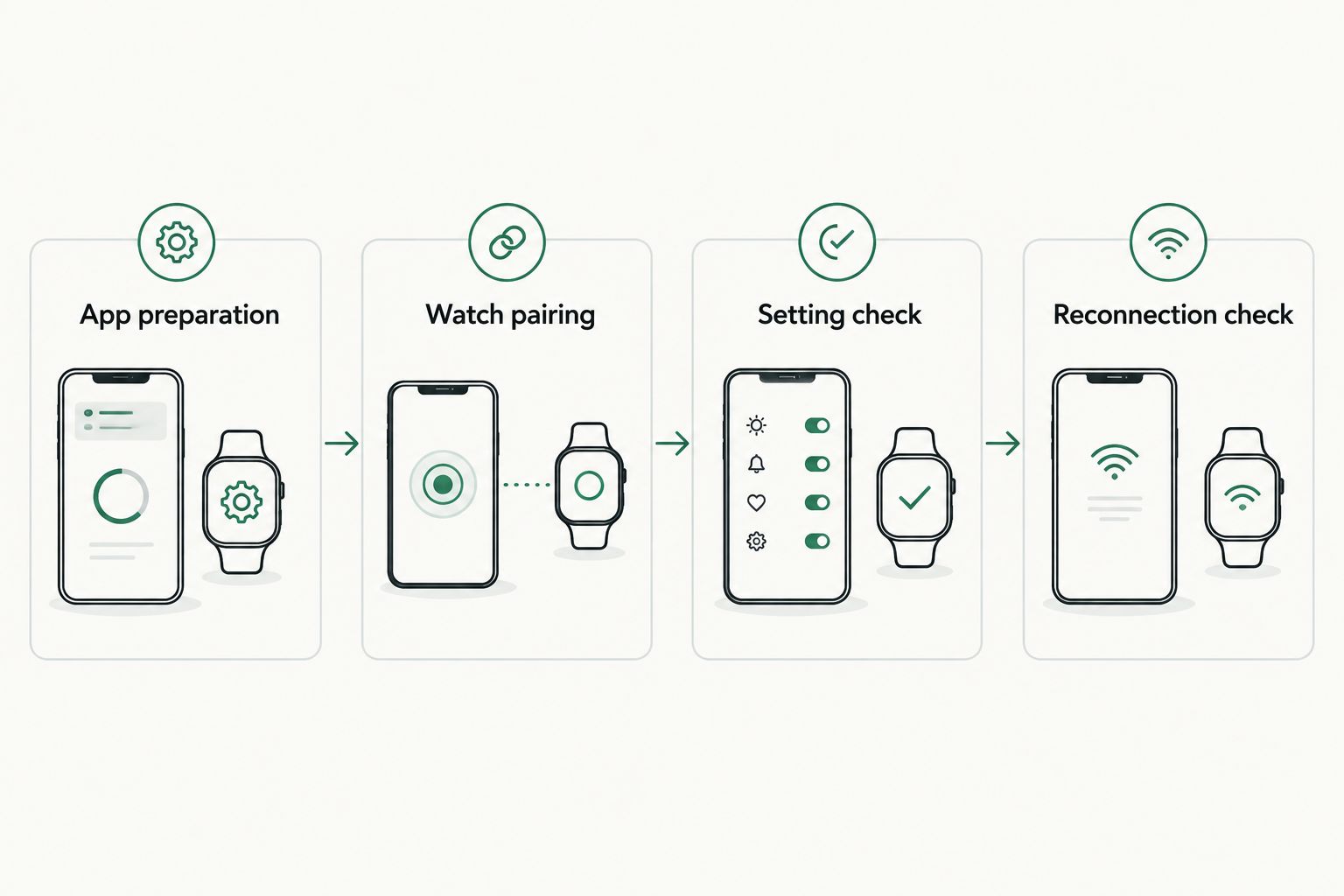
Settings and reconnection checks
Check the functions you actually need
- Identify the connected function that matters to you. For example, decide whether your priority is changing settings or transferring supported timing records.
- Test that function using the app’s own instructions. Do not infer that every function works because one setting changed successfully.
- Compare the result on the phone with the corresponding watch display or stored record. Check the content, not merely the presence of a success message.
- Close and reopen the app, then follow the documented reconnection process. Confirm that the watch can communicate again without repeating the entire initial setup.
- Record the working phone, operating-system and app versions. This creates a useful reference if a later software change affects the connection.
Expected result: your chosen function works, and the connection can be re-established during ordinary use.
In 2026, make this functional test part of a pre-owned inspection if connected features influence your decision. A demonstration on someone else’s phone is useful evidence, but it does not establish compatibility with yours.
Compare the two connection tests
These checks answer different questions. Use both when deciding whether the B55’s connected functions suit your intended use.
| Connection test | Best for | Benefit | Limitation |
|---|---|---|---|
| Supported setting change | Owners who want phone-based configuration | Confirms that a command reaches the watch | Does not establish that timing-record transfer works |
| Supported timing-record transfer | Owners who want to review recorded timing data | Confirms that watch data reaches the app | Does not establish long-term software support |
Neither test replaces normal watch inspection. Check the case, crystal, dial, hands, pushers and crown, then obtain an appropriate assessment of movement and rechargeable-battery health.
Transfer a timing record after using the chronograph
The adjacent workflow is recording an event on the watch and reviewing supported timing information in the companion app. Establish basic pairing before testing this; otherwise a recording issue and a connection issue become difficult to distinguish.
- Read the B55 instructions for the chronograph mode and its record-storage behaviour. Confirm which records the companion app supports.
- Make a clearly identifiable test recording lasting approximately 1 minute. Stop and retain it using the documented watch procedure.
- Connect the watch to the app and follow the app’s instructions for retrieving the supported record.
- Compare the transferred duration with the watch record. A similar-looking entry is not enough; identify the actual test you just made.
- If you want to check repeatability, make a separate recording lasting approximately 2 minutes and repeat the transfer.
Expected result: the app shows the intended records with durations corresponding to the watch’s recordings. These are practical transfer tests, not accuracy measurements or manufacturer performance specifications.
Keep any important existing records before experimenting with deletion, re-pairing or resets. Do not assume that removing the app or clearing a connection preserves data stored elsewhere.
Troubleshooting the Breitling Exospace B55 app
The official app will not install or open
Check the current app-store requirements against your exact handset and operating-system version. Record any error message and consult Breitling’s support channel with those details.
Do not sideload an unverified app or assume an older installation package is safe. If you cannot establish a supported installation path in 2026, do not make connected functionality the basis of a purchase.
The app cannot find the watch
Check that phone Bluetooth is enabled and that the B55 is in the connection state specified by its instructions. Review the app’s Bluetooth-related permissions and any previous phone connection that needs attention under the documented procedure.
Restart the app and repeat the prescribed discovery sequence. Avoid cycling through unrelated crown and pusher combinations: that adds uncertainty without identifying the fault.
The phone lists the watch, but the app does not connect
Check whether setup was completed through the companion app as instructed. A phone-level Bluetooth entry is not confirmation that the app has finished its own connection process.
Follow Breitling’s documented recovery or re-pairing procedure if needed. Before removing a pairing, preserve important records and confirm that the official app remains usable on your phone.
Settings work, but a timing record does not transfer
Confirm that the recording was stopped and retained correctly and that its recording mode supports transfer. Then check that you are viewing the relevant records in the app.
Repeat the short test with a new, recognisable duration. If settings still work but records do not transfer, describe those two results separately when requesting support.
The connection fails again after working
Note what changed: phone software, app version, permissions, handset or watch charging state. Return to the last documented working configuration where the manufacturer’s instructions allow it.
If the watch also shows charging, display or control problems, have its physical operation assessed. Repeated pairing attempts do not diagnose rechargeable-battery or movement faults.
Customise your checks before buying
For an Exospace B55 purchase, ask for a demonstration covering charging, normal watch operation, pairing and your preferred connected function. Ask what service evidence exists and arrange independent authentication; an app connection is not authentication.
Assess originality and condition independently. Replacement components, refinishing and wear need reference-specific interpretation, as explained in our guide to luxury-watch condition grading.
James Patten Fine Watches sells new and pre-owned luxury watches; evaluate any individual example on its own evidence. Original packaging cannot establish movement health, and missing packaging does not make a sound watch unsuitable for collection or daily wear.
Choose the B55 for the watch and the connected functions you can demonstrate, not for an assumed future software capability. Fit, legibility, control operation and charging requirements still matter after pairing succeeds.
FAQ
How do I connect the Breitling Exospace B55 app to my watch?
Use the official companion app and follow Breitling’s B55-specific Bluetooth pairing instructions. Complete any confirmations on both devices, then verify communication with a supported setting change.
Does the Breitling Exospace B55 app work with my phone in 2026?
Check the current official app listing and confirm operation on your exact handset. An earlier demonstration or compatibility statement does not establish that your current phone-and-software combination works.
Should I pair the B55 in my phone’s Bluetooth settings first?
Follow the order specified by Breitling’s instructions and the installed companion app. Do not assume that a phone-level Bluetooth pairing completes the app’s connection process.
Why does my phone show the B55 when the app cannot connect?
Bluetooth discovery and app communication are separate checks. Review the documented setup sequence, app permissions and previous connection before using the manufacturer’s recovery procedure.
Can I transfer chronograph records from the Exospace B55?
The Exospace B55 supports transferring timing information through its companion app. Check the supported recording modes and retention procedure in the model-specific instructions, then verify a recognisable test record.
Does connecting to the app prove an Exospace B55 is authentic?
No, app connectivity does not replace independent authentication. Assess reference correctness, components, condition and movement health separately.
What should I check before buying a pre-owned Exospace B55?
Check charging, watch operation, condition, originality and the connected functions you intend to use. Request service evidence where available and demonstrate compatibility with your own phone before relying on app functionality.
One last thing
Before replacing your phone in 2026, document the B55 connection that already works and preserve important timing records. Test the replacement handset before erasing the old setup.
For James Patten Fine Watches buyers assessing a connected watch, that is the practical distinction: a working demonstration establishes present function, not future support. Keep that boundary clear when deciding how much connected capability matters to your ownership experience.


